
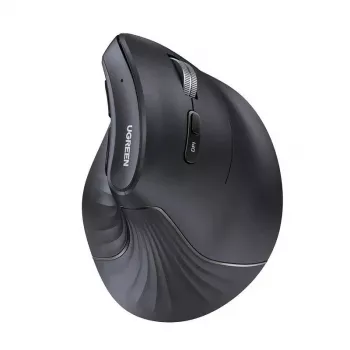
A vertical ergonomic mouse is designed to keep the hand in a more natural “handshake” position, helping reduce wrist twist during long work sessions. This model combines Bluetooth 5.0 and 2.4G wireless options, adjustable sensitivity up to 4000 DPI, and quiet clicks for shared spaces—aimed at comfort, control, and everyday reliability for laptops and desktops.
If you’re updating a work-from-home setup or looking for a calmer, more comfortable way to navigate documents all day, a vertical mouse can be a practical upgrade. For a deeper overview of what “ergonomic mouse” design typically means, see Logitech’s explanation of ergonomic mice. And if you’re addressing wrist or hand discomfort patterns, the Cleveland Clinic’s carpal tunnel overview is a helpful starting point for prevention basics and when to seek care.
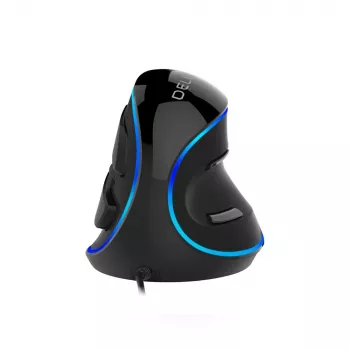
The defining difference is the angled shape. Instead of rotating the forearm inward to lay the hand flat, a vertical mouse supports a more neutral position. Many users describe it as feeling more relaxed over long sessions, especially when switching between cursor work and typing.
Movement can feel unfamiliar at first because the body may be used to steering mostly with the wrist. A smooth transition often comes from lowering DPI initially, then focusing on guiding the cursor with the forearm and shoulder rather than micro-corrections with the wrist.
Look for a supportive thumb rest, a broad palm area that distributes pressure, and a surface texture that stays secure without forcing a tight grip. These small design details often determine whether a vertical mouse feels “natural” after the adjustment period.
Desk workers, students, and creators who spend hours browsing, editing, and navigating large documents tend to appreciate the neutral wrist position. It’s also a nice fit for shared spaces where quiet clicks and wireless flexibility matter.
Bluetooth pairs directly with compatible laptops, tablets, and desktops. It’s especially convenient on modern devices with limited USB ports, and it can be a smoother option when switching between a work laptop and a personal tablet without moving a receiver.
The 2.4G receiver is often the simplest “plug it in and go” choice, particularly for desktop towers or older systems. For a dedicated workstation, it can be the set-it-and-forget-it mode that avoids re-pairing steps.
Both modes are designed for everyday desk distances. If you notice cursor stutter, try moving the receiver to a different USB port (especially away from USB 3.0 hubs), keeping it clear of metal obstacles, and reducing nearby wireless congestion.
| Feature | Bluetooth 5.0 | 2.4G USB Receiver |
|---|---|---|
| Works without a USB port | Yes | No |
| Typical setup | Pair in device settings | Plug receiver and use |
| Best for | Laptops/tablets, multi-device use | Desktops, quick plug-and-play |
| Troubleshooting shortcut | Remove device and re-pair | Change USB port / move receiver |
DPI influences how far the cursor moves relative to your hand movement. Higher DPI typically means you can traverse the screen with less physical motion, while lower DPI can feel steadier for precise tasks like detailed spreadsheet work or careful selection in design apps.
Lower presets often feel comfortable for reading, editing, and precision clicking. Higher presets can be useful on large monitors, ultrawides, or multi-screen setups where long cursor travel can add up over the day.
If you want an everyday ergonomic mouse with quiet clicks and flexible connectivity, the Vertical Ergonomic Wireless Mouse Bluetooth 5.0 2.4G 4000DPI Silent 6 Buttons fits the use case well. It’s a strong match for quiet environments, office navigation, and users who like having both Bluetooth and a 2.4G fallback option.
For a small desk upgrade that pairs well with mobile work, consider a compact fast charger like the 45W GaN USB Fast Charger with PD & QC 3.0 for Phones & Tablets. Keeping devices topped up is especially useful if you frequently switch between a laptop, tablet, and phone during the day.
Neither is universally better. Bluetooth is great for saving USB ports and switching among devices, while 2.4G is often the simplest plug-and-play option; if you run into issues, try re-pairing for Bluetooth or changing USB ports/moving the receiver for 2.4G.
Not always. Many people prefer moderate DPI for steady control, but higher DPI can be helpful on large monitors or multi-screen setups; start mid-range and adjust pointer speed gradually until it feels comfortable.
No—silent switches are quieter, but they usually aren’t truly silent. The remaining sound can depend on your desk surface, how firmly you click, and how the mouse is positioned.











Leave a comment